
How to Move From Monarch Money to WealthMode: CSV Guide
Moving off Monarch Money? Export your transactions to CSV and import them into WealthMode with your categories, tags, and notes intact. Step by step.
About this guide: The Monarch Money steps below are based on publicly available information as of August 2026 and may change. Export locations and file formats are set by each provider and can be updated at any time, so check the current app for exact menu names. Opinions expressed here are our own.
Monarch keeps your data exportable, which makes this the most straightforward of the common migrations. There’s no shutdown to work around and no unusual amount format to decode. Export a CSV, import it, confirm the preview.
This guide covers the specifics anyway, because the details that matter are the ones about what survives the move: your categories, your tags, and your notes.
If you’re still deciding rather than migrating, the Monarch Money alternative guide and the WealthMode vs Monarch comparison cover that side.
Step 1: Export from Monarch
Export lives in the web app. Sign in, open your transactions, and use the export option to download a CSV.
Two things worth doing while you’re there:
- Set the date range to cover everything, not just the default window. This is the single most common reason a migration ends up with less history than expected.
- Clear any active filters before exporting. If you’re viewing one account or one category, the export may reflect that view rather than your full register.
A Monarch transactions export typically carries date, merchant, category, account, the original statement text, notes, amount, and tags. That is close to an ideal import file, since it holds both the cleaned-up merchant name and the raw bank text.
Step 2: Import into WealthMode
Create a free account if you don’t have one. No credit card is required, and the free tier is enough to import and budget.
Open the CSV importer from your transactions and upload the file.
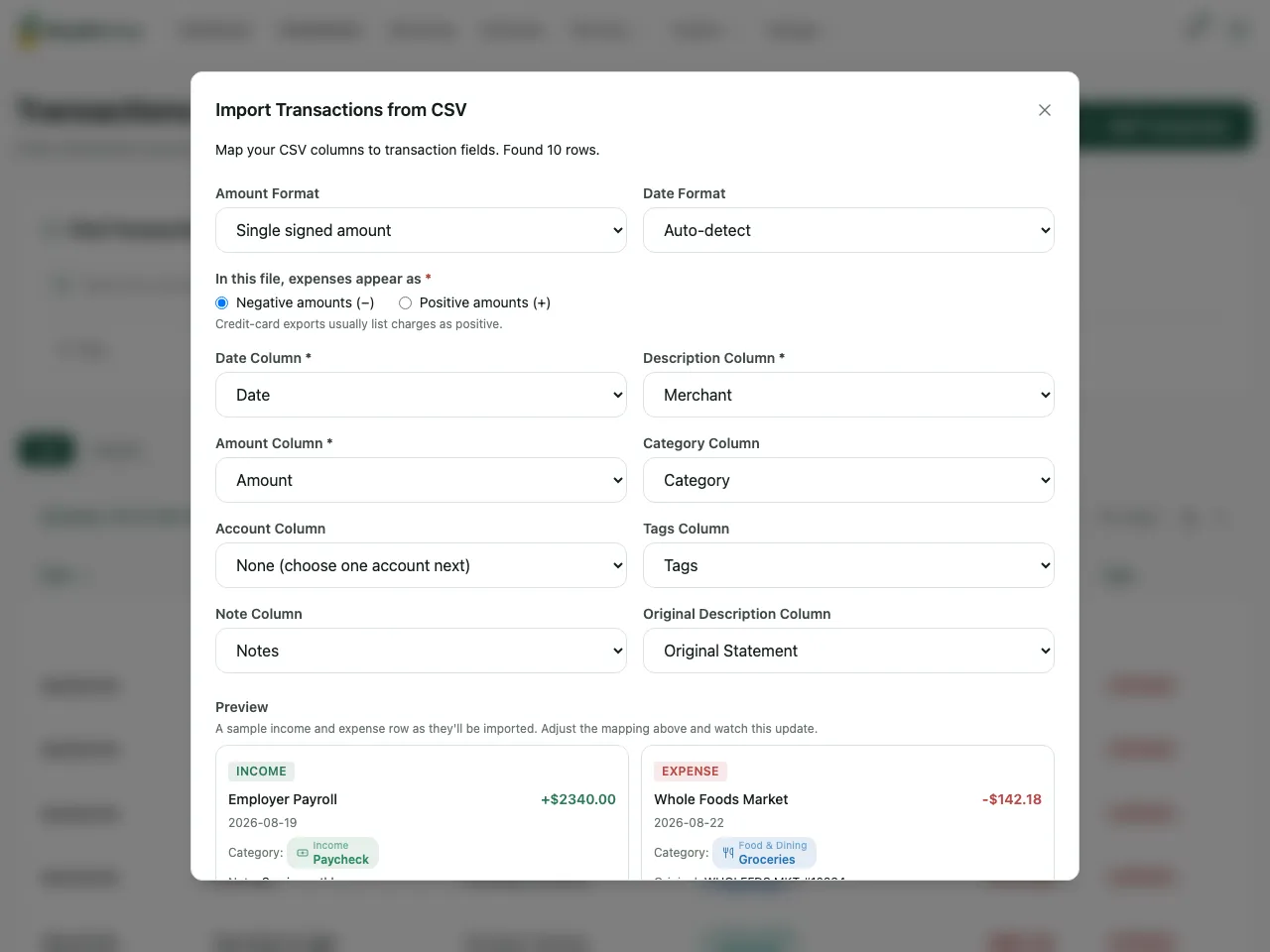
Confirm the mapping. WealthMode reads the headers and the actual values to detect your date, description, amount, category, account, tags, and notes columns, plus the date format. Monarch’s layout is a conventional one, so most of this should be correct already. Confirm it rather than skipping past it.
Monarch exports generally use a single signed amount column, with expenses as negative numbers. Because a single signed column can run either way, the importer asks you to confirm which sign is an expense rather than guessing. Guessing wrong would invert the whole file, so it stops and checks. For a Monarch export the answer is “Negative amounts”, and the live preview updates as soon as you pick.
Route your accounts. Match each account name from the file to an account in WealthMode, or send everything into one account. Names that already match are pre-filled.
Place any unmatched categories. This step appears only when there are category names that don’t line up with yours. Map each one once and it applies to every row using it. If you built a custom category structure in Monarch, expect to spend a minute here.
Review the preview. Nothing is written until you confirm. WealthMode runs a dry run first and shows how each row will land with your transaction rules already applied, so you’re reviewing the finished result rather than the raw file. Likely duplicates are flagged, which matters if you’ve already connected the same accounts for automatic sync. You can edit inline or deselect rows.
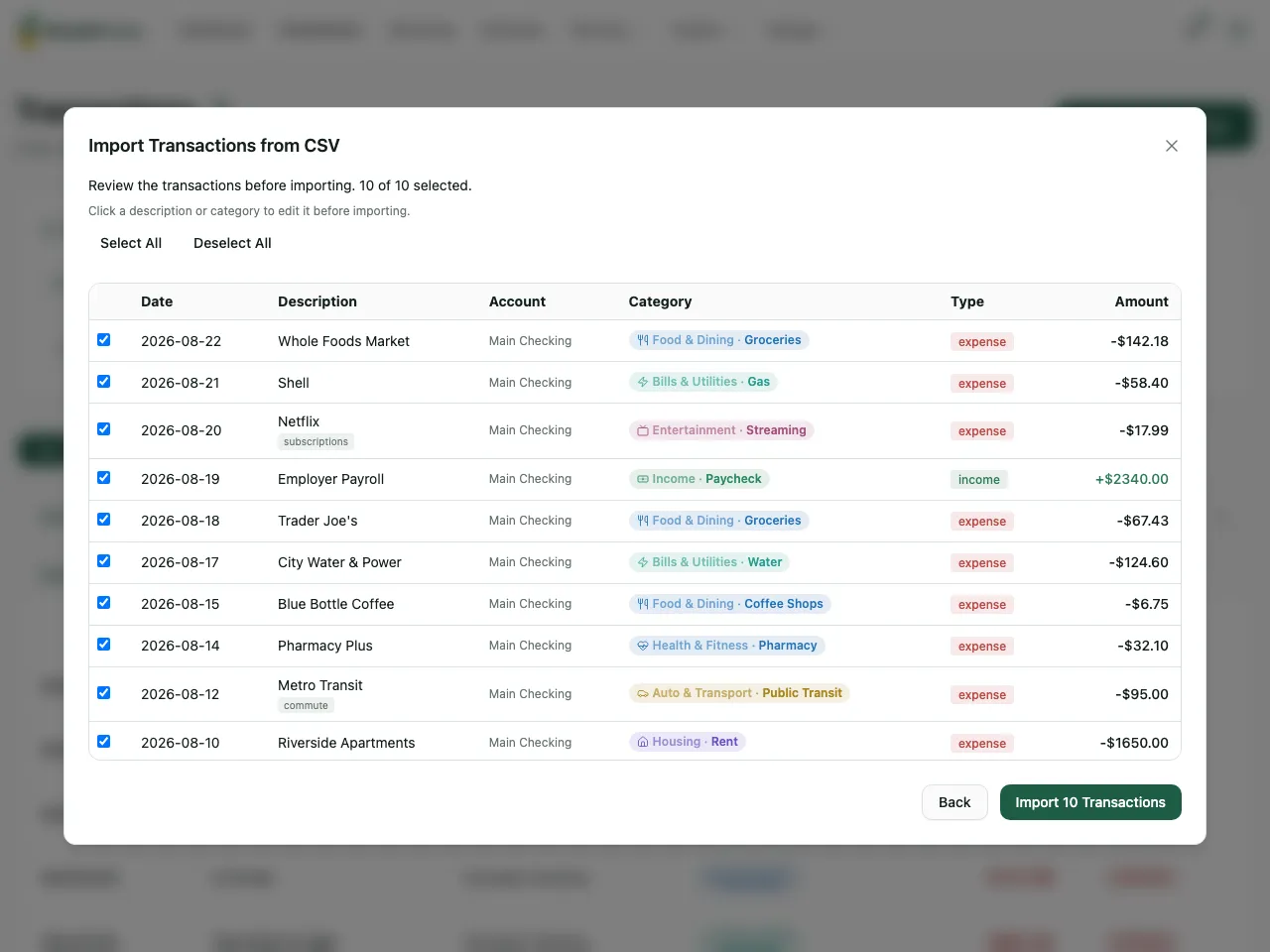
Confirm. Your history lands, categorized and tagged.
What survives, and what you’ll set up again
Survives: transactions with dates, amounts, merchant names, the original statement text, categories, tags, and notes.
Set up again: your budget targets. Budget amounts per category per month are modeled differently by every app, and they don’t transfer through a transactions CSV. In practice you set targets once, with your real spending history already in front of you to base them on.
This is true of any move between budgeting apps rather than anything specific to these two.
If the import isn’t right
Every import is recorded as a batch, and you can delete the entire batch and everything it created in one action. Then re-import with different settings.
Knowing this ahead of time takes the pressure off the mapping step. A wrong guess costs you one click to undo, not an evening of manual cleanup.
After the import
- Check the oldest transaction to confirm your export covered the range you wanted. If it didn’t, export again with a wider range and import the second file. The duplicate flagging catches the overlap.
- Spot-check your tags. If tagging is central to how you track spending, confirm a few tagged rows arrived the way you expect before you rely on it. The expense tracking page covers how tags, categories, and rules fit together.
- Review split transactions. If you used splits in Monarch, check how those rows landed and adjust the categories where the detail matters to you.
- Set your targets now that your history is in place.
Moving off Monarch Money: the short version
Monarch exports cleanly, WealthMode reads the format without special handling, and the parts people care about most, categories and tags, come across. The only thing that reliably needs redoing is your budget targets, and that’s a short job with real history to look at.
For the general version, see how to switch budgeting apps without losing your data. Coming from somewhere else? The YNAB and Mint guides cover those exports.
Frequently asked questions
- Where is the export option in Monarch Money?
- In the web app rather than mobile. As of August 2026, transactions can be exported to CSV from the transactions view, and account and balance data is generally available from settings. Menu names are set by the provider and can change, so check the current app.
- Do my Monarch tags and notes come across?
- Yes, if the export includes those columns. WealthMode detects tag and note columns on upload and carries their values through, so your tagging survives the move rather than being flattened into the description.
- How are Monarch's negative amounts handled?
- Monarch exports typically use a single signed amount column, where expenses are negative and income is positive. Because that can run either way depending on the source, WealthMode asks you to confirm which sign is an expense rather than guessing. For a Monarch export the answer is negative amounts, and a live preview shows the result before you continue.
- Can I import several exports at once?
- Yes, as long as they share the same column structure. If the columns differ between files, the importer tells you rather than merging mismatched data, and likely duplicates across overlapping files are flagged in the preview.